4. The Full-Stack
4.1 Introduction
In recent years, as developers have become skilled in all aspects of development, including how the application interacts with the server it is running on, the concept of a full-stack developer was born. A full-stack developer should have a strong understanding of not only how to code, but also how to set up and manage server-side solutions such as databases and API servers. Rather than seeing the development process as a single step, full-stack developers are encouraged to follow a complete life-cycle, including designing, developing, testing, deploying, and monitoring developed applications.
In this chapter, we begin the process of identifying the dividing lines between each of the technologies used when creating full-stack Chrome extensions, and outline the steps in getting started with each. As all the technologies described in this chapter are designed to run on your local development machine, later in Chapter 13, the process of exporting to a live cloud-based environment is described to complete the development process.
This chapter begins in Section 4.2 System Overview, next, describing the core technologies required for a full-stack extension. Section 4.3 Extension Setup then describes a basic extension that will be used as the basis for future examples. Section 4.4 Custom API Server then describes the process of creating a back-end for the extension in the form of an Express.js-based API server. As data storage is often a requirement of extensions, Section 4.5 The Database describes the process of setting up a local MongoDB database to interact with an extension. Section 4.6 Connecting to the Database then describes different methods of connecting to the local database to view and edit records.
With the new database setup, Section 4.7 Connecting the API Server to a Database outlines the process of connecting the developed API server to the local database. Finally, Section 4.8 API Server and Extension Integration describes the process of integrating the newly developed API server into a custom extension that can send and retrieve data from the database. Section 4.9 Summary then concludes this chapter with takeaway tips from this chapter.
4.2 System Overview
Before we begin the process of developing any Chrome extensions, we first need to consider the technologies required. In the previous chapter, we explored stand-alone extensions that did not require a complete back-end to perform tasks such as page filtering or content replacement. This section describes basic extensions that do require a back-end to perform tasks outside of the extension such as such as saving and retrieving data from a database. When building an extension that requires a full-stack, three core components are always included:
-
Chrome Extension Folder - This folder contains the client-side extension itself, containing files such as HTML for the user interface and JavaScript to interact with the browser. This is often described as an unpacked extension.
-
API Server - This server is used to create a simple middleman between the Chrome extension and a data source, such as a database, to perform tasks such as saving and retrieving data.
-
Database - This is used as our main storage and retrieval tool for data that the extension uses. This is added as the extension itself cannot interact directly with the database without using an API server. In this book, MongoDB is used as the database.
How these three components interact with each other is shown in Figure 1. The Chrome extension (A) is used to perform an action, such as retrieving records from a database. This is done by sending a request to the API server (B), which in turn, interacts with the database (C), to perform the retrieval action.
When the records are gathered from the database (C), they are then processed by the API server (B) and passed back to the extension (A). Although the API server and the MongoDB database will be running locally on your machine, they can easily be pushed to an external cloud-based provider when required.
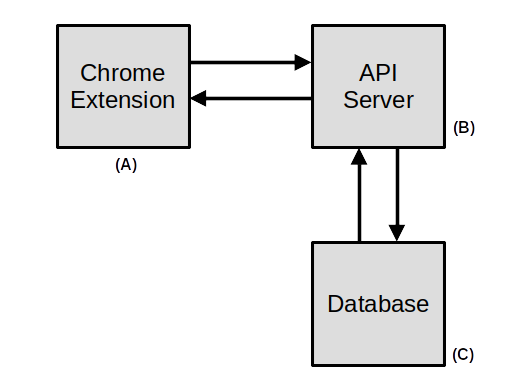
Figure 1: The complete full-stack overview showing the extension interacting with the API server, which in turn then interacts with the database.
The communication between the Chrome extension itself and the API server is performed by defining individual URLs that the Chrome extension can call on the API server to perform a specific task. An example of this is when the extension requires a piece of data from the database, the extension will call a URL on the API server, such as http://localhost:3000/api/getData. When the extension wants to delete a record from the database, a URL is first defined on the API server, such as http://localhost:3000/api/delete?id=1, where /delete is the URL called, and 1 is the ID number of the record we wish to delete.
This approach to calling URLs on the API server to perform individual tasks is defined as a Representational State Transfer (REST) based system. This creates clear-cut lines between the extension itself and the API server's functionality it depends on. With this approach, the extension itself never directly interacts with the database, as we always send the requests through the API server first. In addition to this, the REST-based approach provides an additional level of security by keeping functionality hidden in the API server itself.
4.3 Extension Setup
To get started, we will now begin the process of building a Chrome extension, similar to the one described in Chapter 2, as the starting point of the full-stack extension. The purpose of this extension is very simple: when we click on the icon for the extension in the taskbar, a small window will pop open saying Hello!. To get started, the very first component that we need is a single folder on our desktop titled fullstack-basic. Inside this folder, we will add four files:
- /fullstack-basic/manifest.json
- /fullstack-basic/popup.js
- /fullstack-basic/interface.html
- /fullstack-basic/icon.png
Source: /ch4/fullstack-basic
In this folder, the manifest.json file is responsible for storing basic information about our extension, such as who made it, what version number it has, and the permissions our extension requires. The popup.js, as the name implies, contains the code to pop open a little window when our extension icon is clicked. Finally, the interface.html file contains the actual user interface that the user will see when they click on the icon in the menu bar. The icon.png is the standard smiley face icon that will be shown in the menu bar of Chrome.
File Name: manifest.json
Inside the manifest.json file, we store basic information about the extension. Here, we define what version of the manifest file it adheres to, which is currently V3. After this, we define the name of our extension that will be shown to the user. This is followed by a short description of what the extension is for. We can also include a simple manifest_version number for the extension we are creating.
After this, the action attribute is added. This allows us to define what action our extension performs when the icon is clicked. In our example, the default_popup attribute is set to interface.html to pop open when the extension icon is clicked. This is followed by the default_icon reference, which is the simple icon that will be shown in the menu bar of Chrome for the extension. In this example, we will use the icon titled icon.png that we placed in the root of the extension folder. Below shows the complete manifest.json file for the extension.
{
    "manifest_version": 3,
    "name": "Hello World",
    "description": "My custom extension",
    "version": "1.0",
    "action": {
        "default_popup": "interface.html",
        "default_icon": "hello_icon.png"
    }
}
One element that will become very apparent very quickly when editing the manifest.json file is that whenever there is an error in the file, Chrome will reject the extension and prevent it from being loaded. It is good to keep this in mind when making changes to the manifest.
File Name: interface.html
<body>
    <h1>Hello!</h1>

    <script src="popup.js"></script>
</body>
</html>
File Name: popup.js
To contain the JavaScript for the extension, a JavaScript file is added titled popup.js. Inside this file, we have a console.log() that allows us to print a message to the developer console to tell us that the file has been loaded correctly.
console.log('We are in the popup!');
File Name: icon.png
The smiley face icon used in this extension is a 24x24 pixel PNG. Figure 2 shows this example icon.
Figure 2: The default smiley face icon used by the extension.
View Results
Now that we have added all the required files, we can proceed to load the extension into Chrome, as described previously in Chapter 2, Section loading_extension. When the extension is loaded, the user can click the extension icon to open the window as shown in Figure 3.
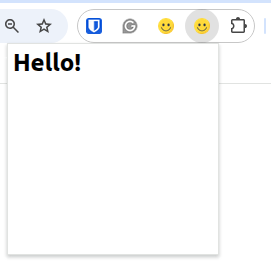
Figure 3: The basic extension pop-open window
Now that we have a basic extension, we can begin the process of developing a custom API server to interact with the extension. Section 4.4 Custom API Server, next, describes this process.
4.4 Custom API Server
As we have now built an extension, we will begin the process of building a custom API server for it to interact with. The purpose of the API server is to serve as a middleman between the extension and the database, which is described in the next section. By building an API server, we can also move functionality out of the extension and into the API server itself, where the data can be further manipulated or processed as required.
To develop this API server, the process is broken into five core steps:
- Installing Node.js (Section 4.4.1 Installing Node.js).
- Installing Express.js (Section 4.4.2 Installing Express.js).
- Adding pages to the API server (Section 4.4.3 Adding Pages to the API server).
- Creating the API page structure (Section 4.4.4 Creating the API Structure).
- Testing the API server (Section 4.4.5 Testing your API).
4.4.1 Installing Node.js
To build our API server, we will use the JavaScript-based library Node.js as the base for our custom API server. To begin, we will start by downloading Node.js. This can be downloaded from the official site https://nodejs.org/. Once on the homepage, the download can be started by clicking the green button shown in Figure 4.
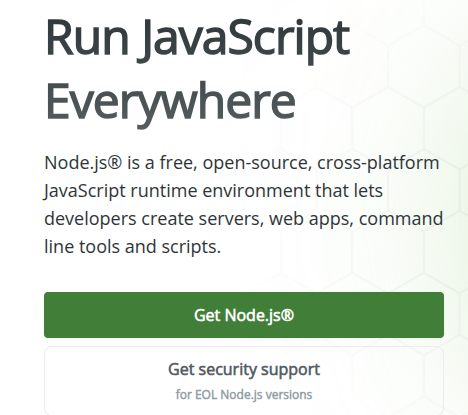
Figure 4: Node.js - Homepage download button.
A second page will then open, allowing you to select the version of Node.js for your operating system, as shown in Figure 5. For Windows users, click the green button to begin the download of the MSI installer shown in Figure 5.

Figure 5: Selecting version to download.
Once the MSI file has been downloaded, double-click the file to begin the installation. Once opened, Figure 6 shows the welcome page. Click Next to continue.
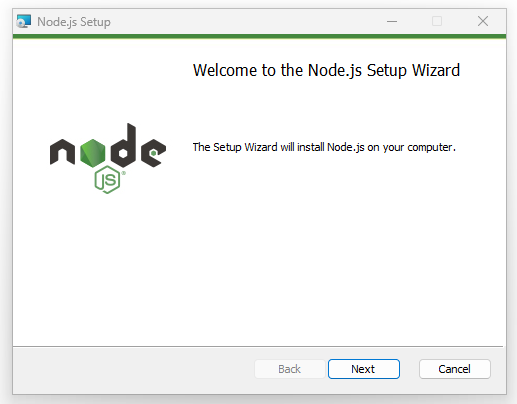
Figure 6: Node.js - Installer welcome page.
Next, tick the license agreement and then click Next, as shown in Figure 7.
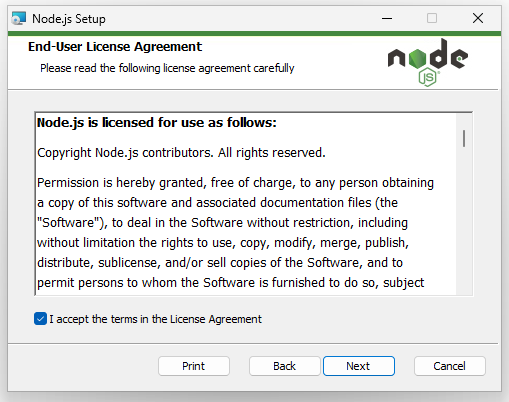
Figure 7: Node.js - Installer license agreement.
The default install location for Node.js is then shown. As no modifications need to be made to this path, click Next to continue as shown in Figure 8.
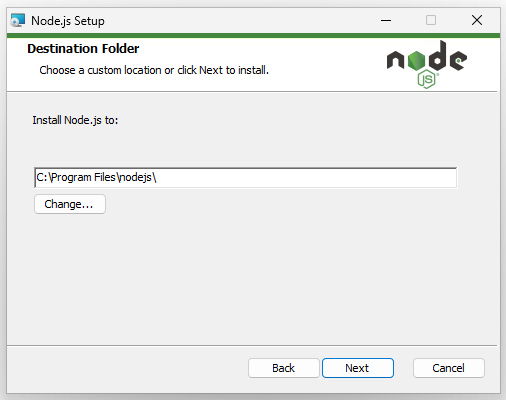
Figure 8: Node.js - Installer default install location.
During the installation process, it is possible to select which components of Node.js we wish to install. As we are installing all the default components, click Next, as shown in Figure 9.
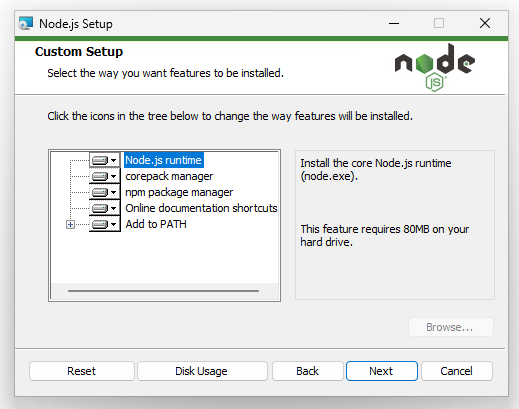
Figure 9: Node.js - Components to be installed.
As some Node.js libraries require additional tools to install, tick the box to agree and then click Next to continue as shown in Figure 10.
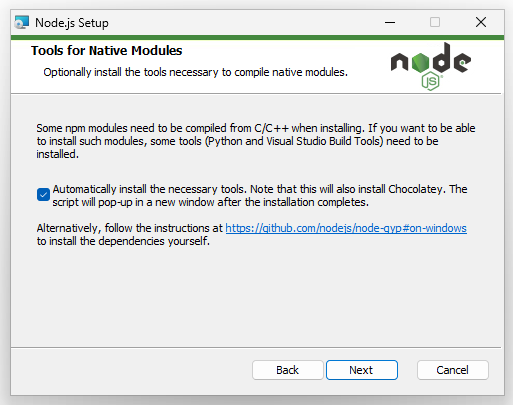
Figure 10: Node.js - Installer asking for additional tools to be installed.
The last step in this process is to begin the installation. To begin, click Install as shown in Figure 11. During this process, you may be prompted by your system to manually approve the installation. If this happens, allow to proceed.
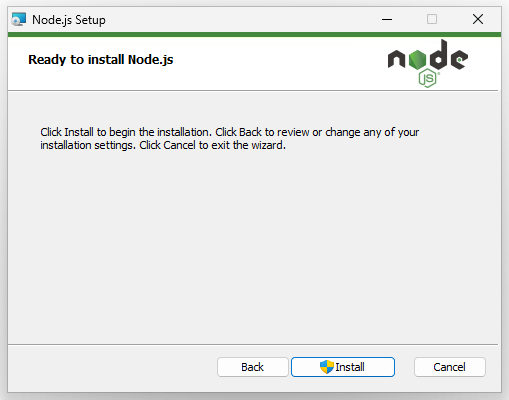
Figure 11: Node.js - Installer reviewing the installation before proceeding.
At the end of this process, a simple message will be shown indicating that the installation has been successful, as shown in Figure 12.
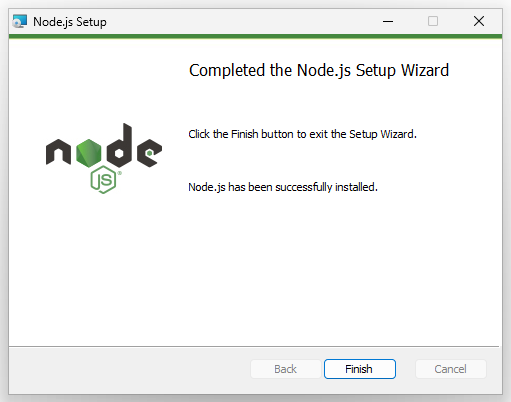
Figure 12: Node.js - Installation success message.
During the installation, we ticked the box to allow Node.js to install additional tools. To perform this process, a Windows command prompt will then be shown asking you to press any key to continue, as shown in Figure 13.
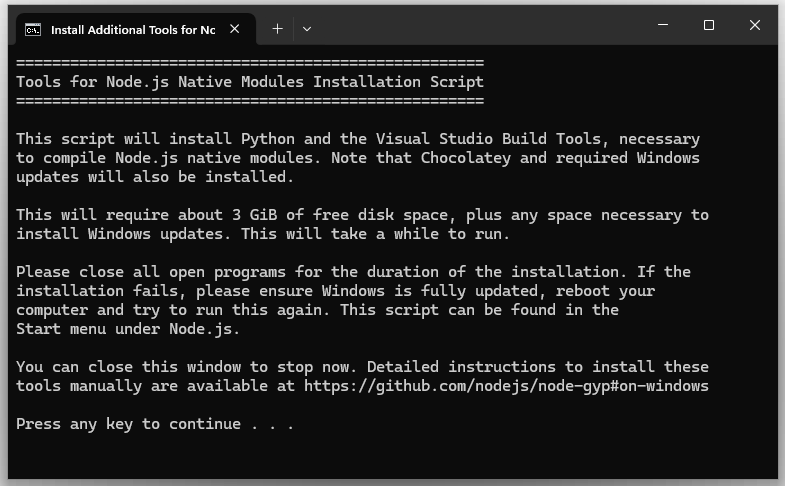
Figure 13: Node.js - Secondary installer asking permission to continue.}
Another prompt will then be shown. Similar to the previous example, this time, asking you to agree to the licenses. Press any key to continue the installation as shown in Figure 14.
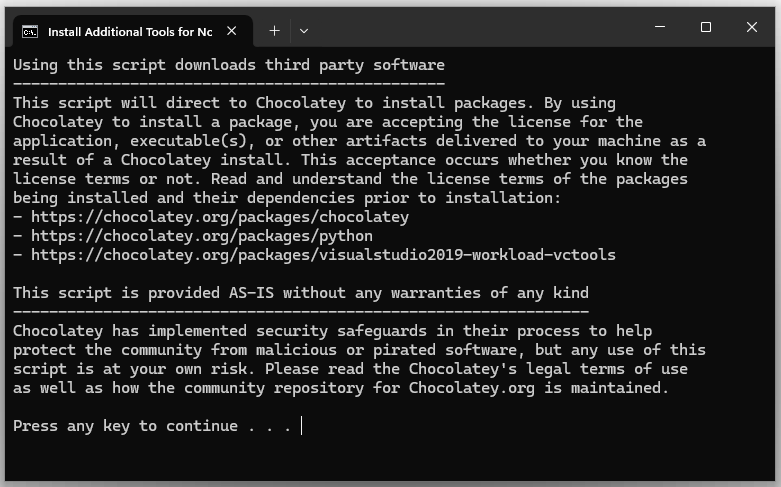
Figure 14: Node.js - Second installer asking do you agree to the license.
Finally, Windows PowerShell will then open to complete the installation process. At the very end of this, a single message will be shown at the end, prompting you to press the enter key to finish, as shown in Figure 15.
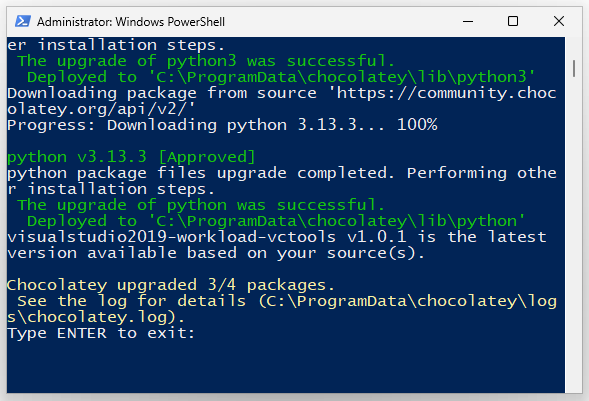
Figure 15: Node.js - Final message from the installer indicating the installation is complete.
After installing Node.js, it is always advised to restart your machine. After restarting your machine, to verify if the installation was successful, open a command prompt and enter the following command to check what version of Node has been installed:
node -v
This command will return the version number of the Node.js installation, such as the output shown below. If you cannot see this, then there may be an issue with your Node.js installation. The version number you are shown does not need to match this exactly.
v25.2.0
When a version number shows up in your command prompt, it indicates that your Node.js installation has been successful, and you can now move on to the next step, beginning the process of installing Express.js to create the API server.
4.4.2 Installing Express.js
Once the installation of Node.js is complete on your local machine, we can begin the process of using libraries to create our API server. In this example, Express.js is used as the core library to create the API server. Express.js (link) is a lightweight JavaScript framework based on Node.js that contains the core structure for the server, such as pages, sessions, request objects, and response objects. As it is a Node.js-based library, we do not need to manually download and move around any code. All the libraries required can be installed through the command prompt.
To begin a new project, create a new folder on your desktop titled apiserver. Next, open a command prompt in the root of this folder. From this command prompt, issue the following command to use the Express.js generator to build the structure of a basic server:
npx express-generator
Figure 16 shows the output after running this command. It shows a brief summary of the files that were created, along with sample commands to install packages and start the server.
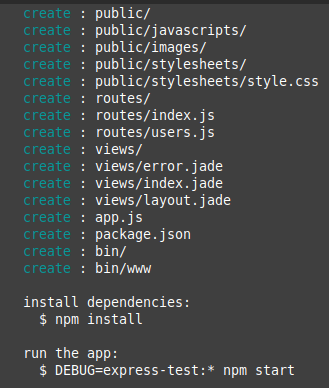
Figure 16: Output from running the Express.js generator tool.
After the generation command has run, we can now see the complete project structure as shown below:
- /bin/
- /node_modules/
- /public/
- /routes/
- /views/
- app.js
- package.json
Source: /ch4/express-basic
npm install
Figure 17 shows the progress outlining that the packages have been installed.
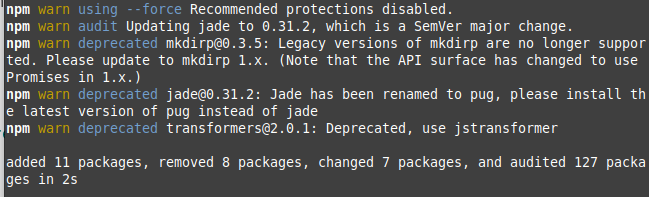
Figure 17: Using the npm install command to add all required packages.
Once the dependencies have been installed, we can now move ahead and start the development server. To do this for Windows-based systems, type the following command in the command prompt opened in the root of the project:
set DEBUG=myapp:* & npm start
When working with a Linux-based system, the following command can be run:
DEBUG=myapp:* npm start
You will then see the following output in your command prompt, indicating that the server has started:
> [email protected] start
> node ./bin/www
To test that the server is working, open a web browser and navigate to http://localhost:3000. In this URL, localhost identifies the current machine you are using, and 3000 indicates the default port the Express.js-based server is running on. When opened in a browser, the default template homepage is displayed as shown in Figure 18. Although minimal, it assures us the project setup has been successful.
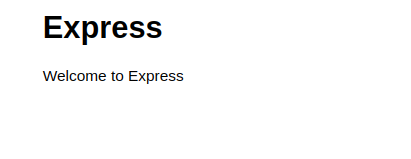
Figure 18: The simplistic Express.js default homepage.
Once we have validated the installation, we can begin to explore the project files. In the project folder, the core of the entire server is the app.js file. This contains the basic structure of the server. Beside this, two of the folders that were generated for the extension are the routes folder and the views folder. In the routes folder, we define individual URLs for the server that we can call, such as http://localhost/getData. In the views folder, we define the pages the user will see if we require a user interface. In this case, as we are building an API server, we do not require any view pages, so the views folder can be ignored.
File Name: app.js
By opening up the app.js, we can see how the server works. At the top of the file, various require() statements are called to pull in different libraries that make up the server, such as the core express library.
var createError = require("http-errors");
var express = require("express");
var path = require("path");
var cookieParser = require("cookie-parser");
var logger = require("morgan");
Two more require() statements are then used to pull in the two JavaScript files that represent pages the server has in the /routes/ folder. The index.js file and the users.js file. These are then placed into two variables titled indexRouter and usersRouter. These files will be explored later in this section.
var indexRouter = require('./routes/index');
var usersRouter = require('./routes/users');

var app = express();
The app.set() and the app.use() functions are called to set various components of the default server. The important element to note here is that at the end of this JavaScript, we can see two app.use() calls, which take in two parameters: a URL we want the server to have, followed by the file reference it is connected to.
In this example, the / URL is bound to the indexRouter object defined earlier, which in turn connects to the /routes/index.js file. A second app.use() call is performed to bind the /users URL to the usersRouter object also defined earlier, which in turn is connected to the /routes/users.js file.
// view engine setup
app.set("views", path.join(__dirname, "views"));
app.set("view engine", "jade");

app.use(logger("dev"));
app.use(express.json());
app.use(express.urlencoded({ extended: false }));
app.use(cookieParser());
app.use(express.static(path.join(__dirname, "public")));

app.use("/", indexRouter);
app.use("/users", usersRouter);
After the URLs have been defined, the rest of the server boilerplate code is then included to catch any errors if pages do not exist.
// catch 404 and forward to error handler
app.use(function (req, res, next) {
  next(createError(404));
});

// error handler
app.use(function (err, req, res, next) {
  // set locals, only providing error in development
  res.locals.message = err.message;
  res.locals.error = req.app.get("env") === "development" ? err : {};

  // render the error page
  res.status(err.status || 500);
  res.render("error");
});

module.exports = app;
Although there is a large amount of boilerplate code in this file, very little modification is needed. In the next section, the process of defining additional pages for the API server is described.
4.4.3 Adding Pages to the API server
In the previous section, we got the basic Express.js-based server up and running. This section outlines the process of adding pages to the basic server template. Below each of the folders and files that make up the server can be seen:
- /bin/
- /node_modules/
- /public/
- /routes/
- /views/
- app.js
- package.json
Source: /ch4/express-new-url
In the root of the project, head into the /routes/ folder, and then open the file titled users.js. This file defines a single page for the server that runs when the URL localhost:3000/users/ is called. At the top of this file, the Express.js library is first pulled in. This is followed by a reference to the Express.js router. The router is the middleware that handles and connects the individual URL calls to their associated files.
After this, the router.get() function is included. This code defines that when a GET request is performed by a browser, e.g., the URL is typed into a web browser, the server will respond by sending back the contents of this function. Inside this router.get() definition, three important references are included: req, which contains information about the request that has come in to the server, and res reference, short for response, which is used to send the response back. In this sample, the text response with a resource is sent back when the /users URL is called. To send this message back to the web browser, the res.send() function is used. This res object is short for response, which is the object we are sending back.
var router = express.Router();

/* GET users listing. */
router.get("/", function (req, res, next) {
  res.send("respond with a resource");
});

module.exports = router;
For this example, we will make a second URL for the localhost:3000/users/ URL, titled localhost:3000/users/test/. The complete router.get() function is added again after the previous block of code. Inside this function, the major change is the URL that we add. In this case, inside the second router.get() definition, the URL /test was added to uniquely identify this block of code. At the end of this code, it contains the command res.send() to send back the text when the URL is called.
var router = express.Router();

/* GET users listing. */
router.get("/", function (req, res, next) {
  res.send("respond with a resource");
});

// additional URL
router.get("/test", function (req, res, next) {
  res.send("This is the new page located at /users/test");
});

module.exports = router;
To test this new page, save the changes to the users.js file, and then restart the Express.js server. From the command prompt, Ctrl+C can be used to stop a currently running server, allowing us to then reissue the run command. We can then open a web browser and enter the http://localhost:3000/users/test URL. When this is done, the following message can be seen in the browser:
This is the new page located at /users/test
Once this process is completed, we now have two different URLs for the users.js page:
http://localhost:3000/users/
http://localhost:3000/users/test/
Now that we have covered the basics of creating URLs inside existing JavaScript files, the next section introduces the process of building up an API server structure with multiple URLs.
4.4.4 Creating the API Structure
In the previous section, we created URLs for pages that existed in the default Express.js project. This section outlines the process of building up multiple different URLs to define our API server from different files, each of which will perform different tasks.
- /bin/
- /node_modules/
- /public/
- /routes/
- /views/
- app.js
- package.json
Source: /ch4/express-server-just-routes
In this server, we will have the base URL /api/. Inside this, we will have two sub-routes. For this example, the first is titled * /test1 and the second is titled * /test2. We will assume these are for putting information into the database and retrieving it. The complete URLs for this are shown below:
http://localhost:3000/api/
http://localhost:3000/api/test1
http://localhost:3000/api/test2
File Name: api.js
To create these URLs, we first need to create a new file titled api.js and place it into the project's routes folder. Inside this api.js file, we begin by using the require() statement to pull in Express.js and then create a reference to the Express router. After this, we create a default URL * /api/ by defining it in the router.get(). The res.send() function is then added to return the text The API was called*.
var express = require("express");
var router = express.Router();

// default URL
router.get("/", function (req, res, next) {
  res.send("The API was called!");
});
Below this, we again add a router.get() function to define the /test1 URL. Inside this, the res.send() function is used to send the text The test 1 API was called!
// test 1
router.get("/test1", function (req, res, next) {
  res.send("The test 1 API was called!");
});
Finally, the router.get() is used again to define the /test2 URL. Inside this, the res.send() is used again to return a simple text string. At the very end of this file. After the /test2 URL is defined, the module.exports is called and set to the router object to make all the URLs we just defined available to the server.
//test2
router.get("/test2", function (req, res, next) {
  res.send("The test 2 API was called!");
});

module.exports = router;
Although we are just returning small pieces of text for each URL, the complete API URL structure is defined, and we can add more routes in the future where required. After the routes are defined, we need to head back to the project's app.js file in the root of the object to link the api.js file into the core app.js file.
File Name: app.js
Inside this file, we previously used require() statements to pull in the routes we defined in the index.js file and the * users.js file in the routes folder. As we now have an additional route titled api.js, we use a require() statement to pull it into the server. A variable titled apiRouter is used to hold it. At the very end of this file, we used the app.use() calls to define the / URL and the /users URL. We add an additional app.use() call for the /api URL which points to the apiRouter* variable reference. Both changes are highlighted in the code below. For brevity, the second half of this file is removed.
var indexRouter = require("./routes/index");
var usersRouter = require("./routes/users");
var apiRouter = require("./routes/api");
var app = express();

// view engine setup
app.set("views", path.join(__dirname, "views"));
app.set("view engine", "jade");

app.use(logger("dev"));
app.use(express.json());
app.use(express.urlencoded({ extended: false }));
app.use(cookieParser());
app.use(express.static(path.join(__dirname, "public")));

app.use("/", indexRouter);
app.use("/users", usersRouter);
app.use("/api", apiRouter);
Whenever any changes are made to the JavaScript files that build up the server, remember to restart the server for the changes to take effect. When the new API structure is defined, we can move on to Section 4.4.5 Testing your API to test the routes.
4.4.5 Testing your API
Although it is possible to open a web browser and type in the API URLs repeatedly, to be a little more systematic, we can use an application designed for testing server URLs to see wheather they work, and return what we expect them to. Postman (link) is a simple piece of software that allows us to enter the URL we want to call and also specify what data and request headers we would like to send to the URL. To download Postman, head to https://www.postman.com/downloads/ and click Download as shown in Figure 19.
Figure 19: Postman homepage button to download the application.
Once downloaded, double-click the file to get started. The program does not offer any customization and runs when the icon is clicked. On your desktop, an icon for Postman will also be visible. Once opened, Postman will prompt you to sign up for an account or to use the lightweight client. As we are sending basic requests, an account is not required. Click Light-weight client and the default dashboard will open as shown in Figure 20.
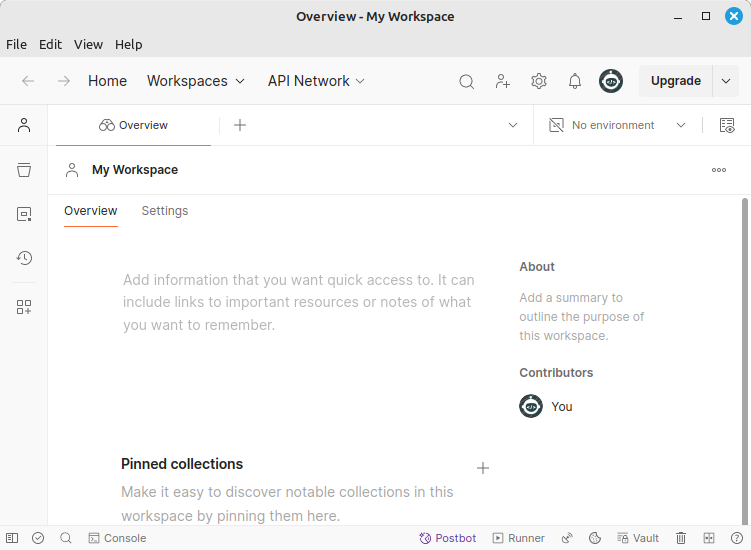
Figure 20: Postman client interface.
Before we begin testing, ensure that your Express.js API server developed in the previous section is running in the background in a command prompt. To test one of the URLs we have just created, such as http://localhost:3000/api/test1, we can open Postman and click File -> New tab. A new request tab will then open. In this, we can type the URL that we want to test as shown in Figure 21.
To the left of the URL, you will notice that we are sending a GET request to the server. The console at the bottom of Postman shows the response that was sent to us by the API server we created. The text we added to our new URL route is visible here, indicating to us that the request was successful. In the future, we will change the request type, and also add additional parameters to our API server URL requests.
Postman provides a simple, repeatable interface for performing these URL requests. If we wish to keep this request to repeat in the future, by pressing Ctrl+s a prompt will open allowing you to save it to your request library.
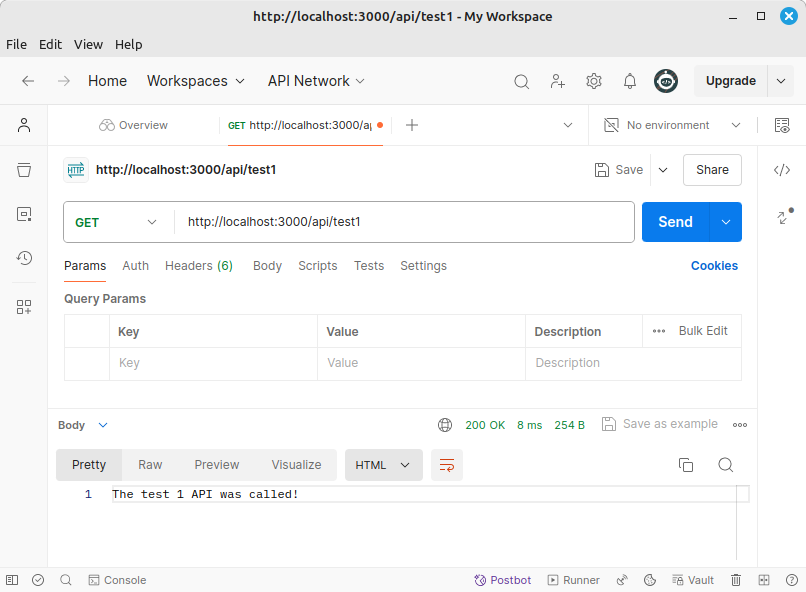
Figure 21: Postman interface with a sample request to our custom Express.js API server.
Now that we have set up a basic API server, we can move on to creating a local database that our API server can interact with to save and retrieve data.
4.5 The Database
When building any extension, we have a number of different options for storing data. The most robust method of storing extension data is to an external database via the API server. In this section, we outline the process of setting up a MongoDB (link) database for our API server to use. MongoDB is a simple, no-fuss NoSQL server with extensive tools and documentation available. Unlike other databases, all the records that are stored in MongoDB are represented as JSON documents. As the data is in JSON format, in the future our extensions can easily read this JSON and extract the required data with little processing overhead. When we want to download MongoDB from their official website, you will see that MongoDB has three core variations available:
- A community edition of the database server, which is available for free,
- A paid version of the server for business purposes, and
- A cloud-based hosted version for when we wish to move away from our local development environment.
In this example, we will work with MongoDB Community edition version 8.0.5. Included in this database server is an additional program titled MongoDB Compass. Compass is a user interface-based tool that allows us to interact with the database and insert and remove records easily.
To begin the installation, we first need to download the server. This is done by heading over to the official website: https://www.mongodb.com/try/download/community-edition. On this page, we can select the operating system that you are working with and the version of the application we want to download. Although different versions exist, we will use the current version of MongoDB, 8.0.5, as shown in Figure 22. When selecting the package version, choose msi, the Microsoft Software Installer for Windows.
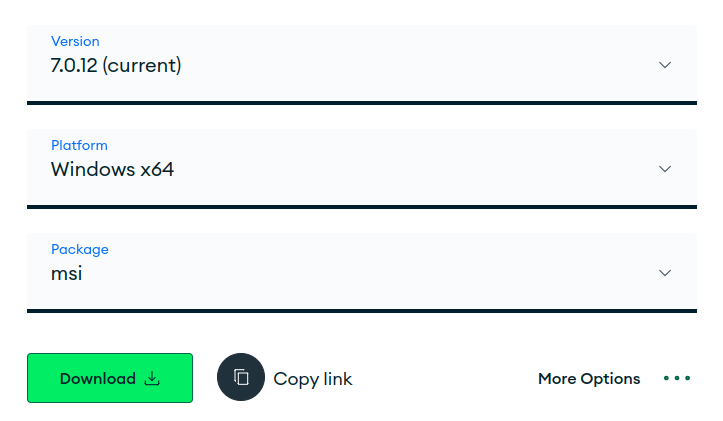
Figure 22: MongoDB Server - Download page.
The Windows installer will then open the first screen as shown in Figure 23. Click Next to proceed.
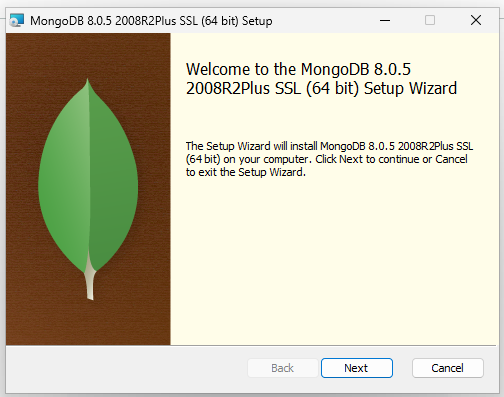
Figure 23: MongoDB Server - Welcome screen of the installer.
Tick the user agreement as shown in Figure 24, and click Next.
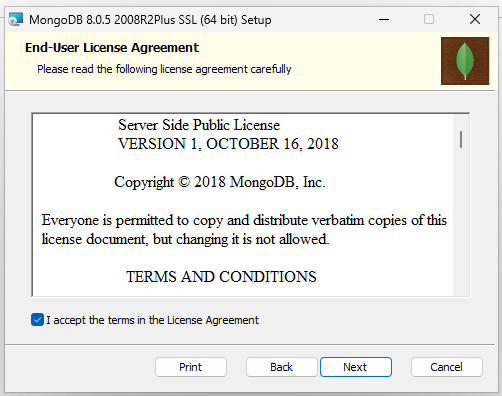
Figure 24: MongoDB Server - User agreement check box.
Two options exist when installing the database, as shown in Figure 25. The first of these is Complete, which is the entire package, and Custom, where individual components can be selected. For this example, click Complete followed by Next.
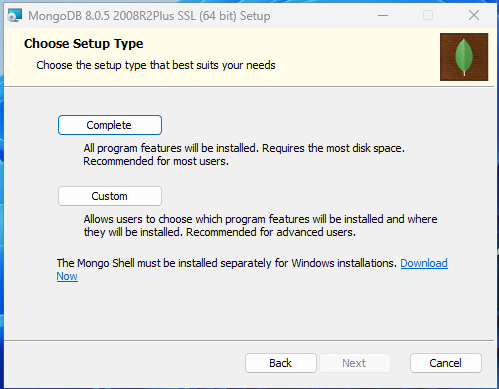
Figure 25: MongoDB Server - Selecting installation type.
On the next screen, as shown in Figure 26, we are shown a Configuration. Here we tick Install MongoDB as a service. We can then choose which account the database will run with. In this example, we will choose the first option, Run service as Network Service user, which uses the current user account and runs in the background without intervention. The default service name and installation location can remain unchanged. After this, click Next to continue.
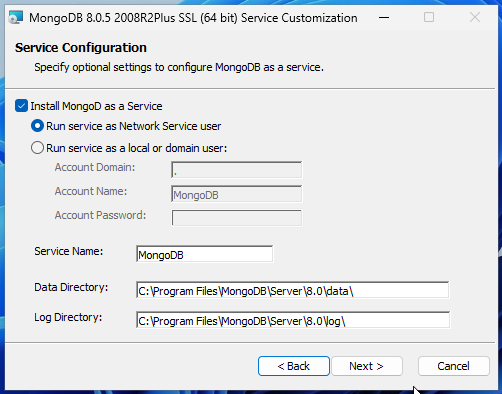
Figure 26: MongoDB Server - Selecting runtime user account.
As databases are designed to run in the background without a user interface, during the installation process, a small tick box can be seen. When selected, the installer will also install MongoDB Compass, which we will use to connect to the database. After the box is ticked as shown in Figure 27. Click Next to continue.
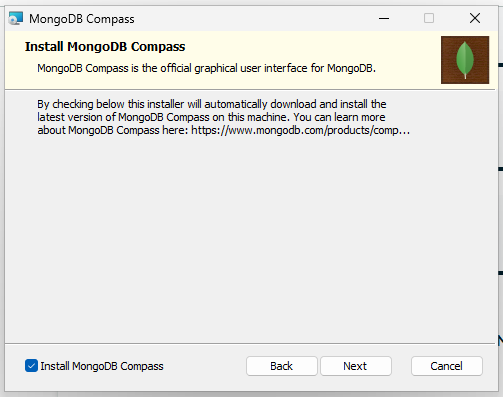
Figure 27: MongoDB Server - Selecting MongoDB Compass to be installed also.
Finally, we can click Install to begin the installation process as shown in Figure 28. In some instances, Windows may ask you to manually approve the installation at this stage.
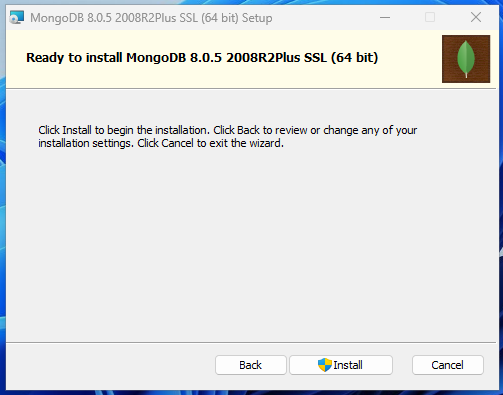
Figure 28: MongoDB Server - Viewing the final install button.
At the very end of the installation process, a simple complete message is visible as shown in Figure 29. Click Finish to close the installer.
Figure 29: MongoDB Server - Installation complete message.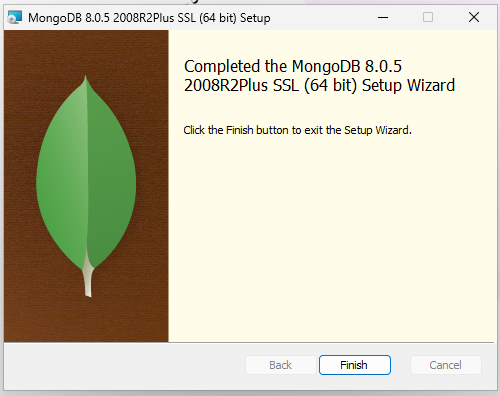
After the installation has been completed, it is always advised to restart your machine. Now that we have the complete MongoDB server and the MongoDB Compass client tool installed, we can begin the process of working with the database. As a database is designed to be run in the background, the database itself does not have a user interface. In the background of your operating system, MongoDB runs as a service. At any time, if we want to check if the database service is running or stopped, we can click on the Windows start menu, and type services, as shown in Figure 30 to view your machine's services.
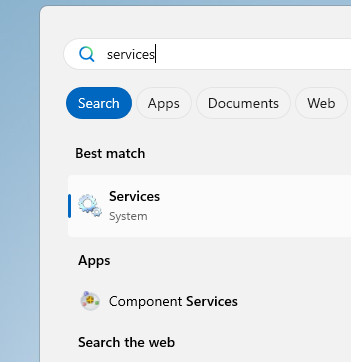
Figure 30: MongoDB Server - Finding the service menu item.
The list of services for your Windows installation will then open. In Figure 31, we can see the MongoDB database service is currently running.
Figure 31: MongoDB Server - Windows service running in the background.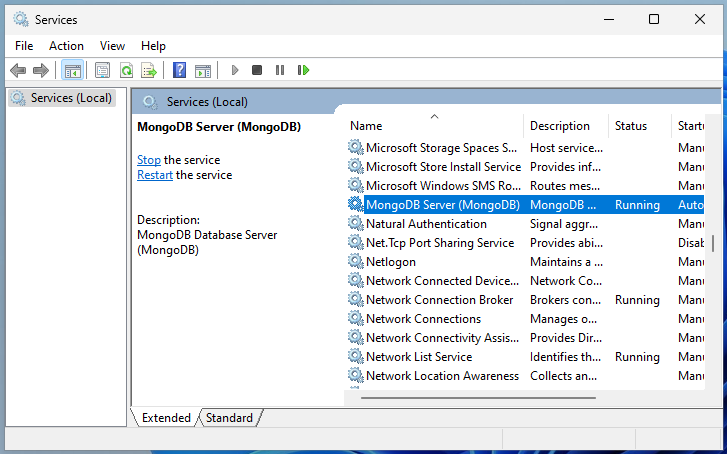
We are now ready to begin the process of connecting to the database to insert and modify records.
4.6 Connecting to the Database
After the installation of the database and the client tool is completed, on your desktop, you should now have a new icon titled MongoDB Compass. Double-click on this to open the client tool. The user interface for Compass is quite minimal, as shown in Figure 32. We can now connect to the database by clicking the green button titled Add new connection.
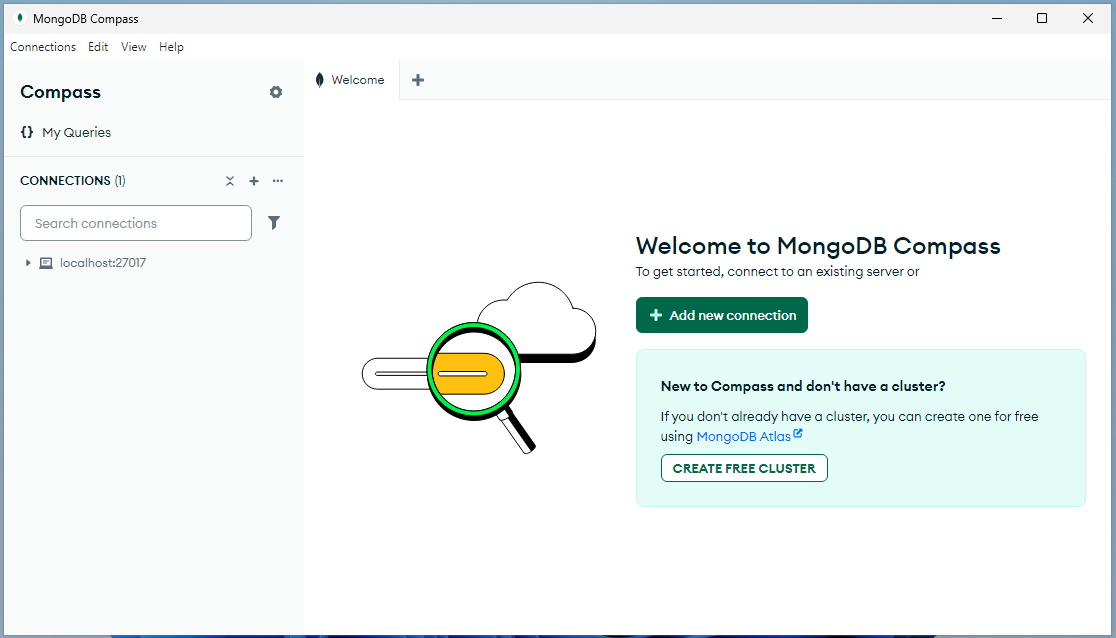
Figure 32: MongoDB Compass - Dashboard on first launch.
In the window that opens as shown in Figure 33, the default connection string for the database is added. This contains localhost as the address, and the default port for MongoDB, 27017. Click Save and Connect to make the connection. By default, no authentication is needed for a default MongoDB server installation.
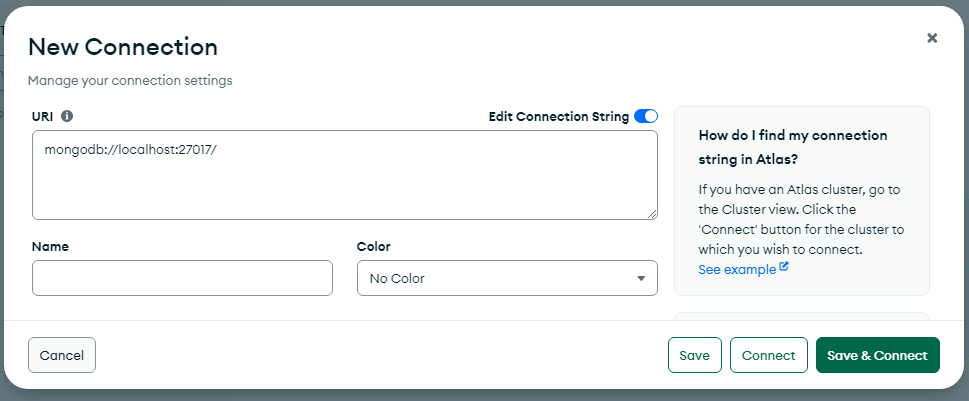
Figure 33: MongoDB Compass - Creating a new connection.
When the connection is successful, you will see a list of the default databases on the left, as shown in Figure 34.
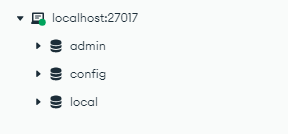
Figure 34: MongoDB Compass - List of default databases.
To create a new database, hover your mouse on the address localhost:27017 and the plus sign as shown in Figure 35.
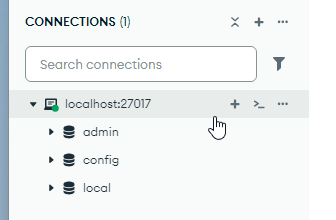
Figure 35: MongoDB Compass - Creating a new database.
In the dialog that opens, enter appdata as the database name and sample as the collection name, as shown in Figure 36. To finish, click Create database.
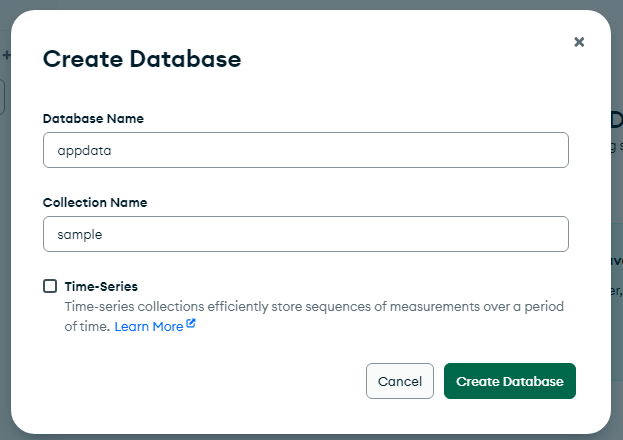
Figure 36: MongoDB Compass - Creating a new database collection.
After we create the database, Compass will open the new database on the left, followed by opening the collection as shown in Figure 37. As there is no data in the collection, the contents are currently empty.
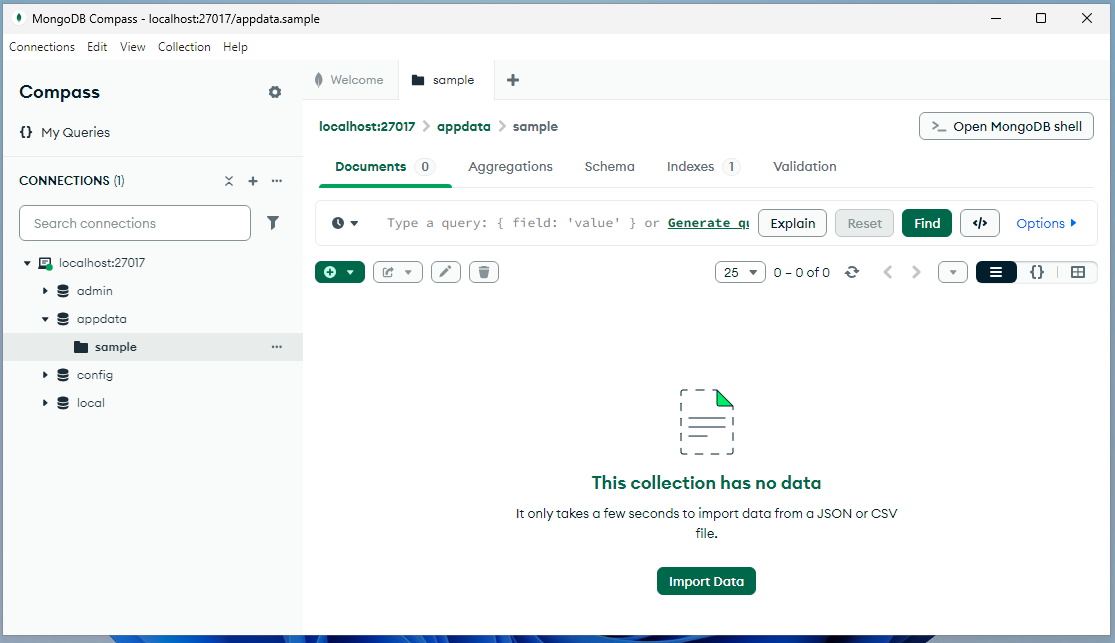
Figure 37: MongoDB Compass - View new database.
To add a sample record to the database collection, click on the plus sign in the centre of the screen, as shown in Figure 38, and click Insert Document.
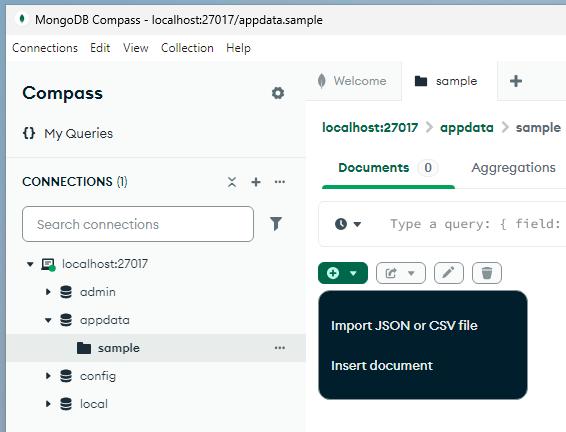
Figure 38: MongoDB Compass - Adding a record.
In the dialog that opens, first clear away the sample JSON. We can then begin the process of adding our custom JSON for our new record as shown in Figure 39. This sample record contains two attributes, name and age. Between each attribute, a simple comma is added. Finally, to insert the record, click Insert.
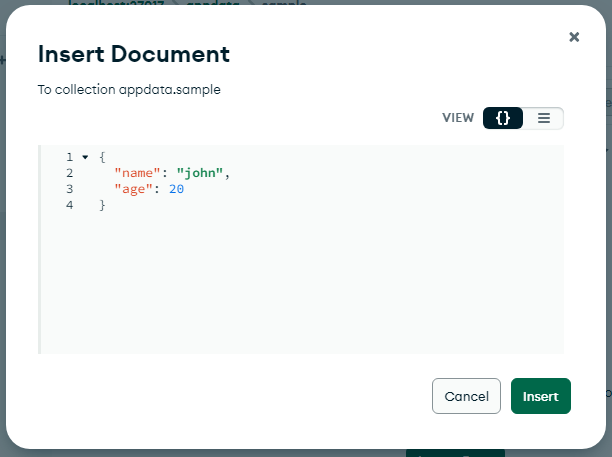
Figure 39: MongoDB Compass - Adding a new JSON document.
View Results
Figure 40 shows our new JSON document in the sample collection that is contained in the appdata database.
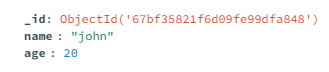
Figure 40: MongoDB Compass - Viewing the record.
At the end of this process, we now have a new MongoDB database set up, along with a simple collection that contains a single document. In the next section, we will begin the process of connecting to the database using an API server.
4.7 Connecting the API Server to a Database
In the previous sections, we outlined the steps to create a basic Chrome extension, API server, and database. In this section, we will describe the process of integrating the API server and database together on your local machine. After this is completed, we will have the ability to call API server URLs in a web browser or via Postman to retrieve data from the database. To get started, make a copy of the API server defined in Chapter 4, Section 4.4 Custom API Server, or clone the repository listed below.
The core modification in this project is the /routes/api.js, which defines the individual routes for our API.
- /bin/
- /node_modules/
- /public/
- /routes/
- /routes/api.js
- /views/
- /app.js
- /package.json
Source: /ch4/express-server-with-db-call
The official MongoDB documentation (link) for Node.js contains a simple example of creating a database connection. In this section, we will build on this basic example to add database calls to our server. From the root directory of the API server, open a command prompt and run the following command to install the latest version of the MongoDB driver. This driver allows our Express.js app to interact with the local MongoDB server.
npm install [email protected]
Once the library has been installed in the project, we can now proceed with modifying the code.
File Name: api.js
In the * /routes/ folder in our project, we have a file titled api.js. This file contains all the API routes we have previously created. We will now replace them with two routes. One titled / which represents the root URL localhost:3000/api/*, and a second one titled /getData, which is used for pulling records from the database and returning them. Below shows the first route, which returns a simple piece of text when called.
var express = require("express");
var router = express.Router();

/* GET users listing. */
router.get("/", function (req, res, next) {
  res.send("The API was called!");
});
Just below this, we will create the new route titled * /getData. This route is used to connect to the database and pull the records we wish to retrieve. Similar to previous examples, the router.get() function is used to define a new URL which accepts GET* requests.
var express = require('express');
var router = express.Router();

/* GET  */
router.get('/getData', function(req, res, next) {
After this, we use the require() statement to pull in the MongoDB library that we installed earlier. Then we include the most important element, which is the connection string outlining where the database is hosted, shown as the variable uri. As we previously installed it on our local machine, the connection IP is left as localhost. The default port number is tacked onto this following a colon, e.g., :27017. We then create a new instance of the MongoClient and pass in the uri variable, which is then placed into a new object titled client.
const { MongoClient } = require("mongodb");
const uri = "mongodb://localhost:27017";
const client = new MongoClient(uri);
A new function is then added, and prefaced with the text async. This piece of code is designed to run in its own time and return when it is complete. A try-catch statement is then added to try connect to the database and catch the error if it cannot connect. The client.db() syntax is then used to select the database titled appdata that we created earlier. This reference is placed into an object titled database. As each database contains a number of different collections, we use the database.collection() syntax to select the collection we created earlier titled sample, and place the reference into an object titled user_records.
We then define the query that we wish to run on the database in JSON format. In this example, we are selecting the document with the attribute name set to john, which was created in the previous section. This query is then placed into a variable titled query. To run this query against the collection that we selected earlier, the user_records.findOne() function is called and the query variable is passed in. In front of this, the await keyword is added to tell the code to wait for this response before moving on to the next piece of code.
When the records are available, it is placed into a variable titled rec. Finally, to send the result back, the res.json(res) syntax is used to send back the JSON contained in the res object. At the very end of this piece of code, a catch statement is added to catch any errors if the database connection fails. As we have now created the complete function to interact with the database, the function is finally called by adding the run() function call.
async function run() {
  try {
    const database = client.db("appdata");
    const user_records = database.collection("sample");

    const query = { name: "john" };
    const rec = await user_records.findOne(query);

    console.log(rec);
    res.json(rec);
  } finally {
    await client.close();
  }
}
run().catch(console.dir);
To finish the route, we add a close bracket set followed by exporting the router to make the changes visible.
});
module.exports = router;
To test this code, save the file and restart the server. In a web browser, type the following URL:
http://localhost:3000/api/getData
In our server's console, we can see the results of calling the http://localhost:3000/api/getData URL. In this result, we can see that a GET request was performed on the /api/getData URL from the web browser.
GET /api/getData 304 72.233 ms - -
{
    _id: new ObjectId('669501dcc66c9fba98482f8b'),
    name: 'john',
    age: 20
}
In the web browser, we can see single result is returned as shown below.
{
    "_id": "67c6d949534d0a78ca7bf888",
    "name": "john",
    "age": 20
}
Now that our API server is fetching a record from the database when the localhost:3000/api/getData URL is called, we can move on to using our extension to call the URL when a button is clicked.
4.8 API Server and Extension Integration
Now that we have successfully got the API server to call the MongoDB database, we can go one step further to integrate the API server into a Chrome extension. This extension contains a page titled interface.html which pops open when the user clicks the extension icon in the browser menu bar. On this pop-up, we will add a button to call the API server's URL http://localhost:3000/api/getData.
To get started, create an empty folder titled basic_extension-with-db, and insert the following blank files:
File Structure
- /basic_extension-with-db/
- /basic_extension-with-db/manifest.json
- /basic_extension-with-db/popup.js
- /basic_extension-with-db/interface.html
- /basic_extension-with-db/icon.png
Source: /ch4/basic_extension-with-db
In this extension, the manifest.json file defines the basic details of the extension and the permissions it requires. The popup.js file contains the JavaScript to interact with the API server itself. To provide the user with a user interface and a button they can click, the interface.html file is added. This file pops open when the user clicks the extension icon in the browser menu bar.
File Name: manifest.json
Similar to previous examples, the manifest.json defines the basic attributes of the extension, including the name, description, and version number. In addition to this, the host_permissions attribute is added. The purpose of this attribute is to whitelist the API server's addresses to allow the extension to interact with the API server over the HTTP protocol. By default, Chrome extensions cannot connect to external servers unless added to this whitelist. As our API server is currently located on our local machine, we can set the URL for the attribute to localhost with the port number 3000. The asterisk at the end of the URL identifies that we want to allow all the pages and sub-directories of the URL.
Working with external servers, and even servers on the same address, such as localhost, commonly a Cross-Origin Resource Sharing (CORS) errors can often be seen. This error outlines that the extension is not running on the same URL as the API server. When this occurs, it is important to review the URLs that have been whitelisted for the extension.
{
    "manifest_version": 3,
    "name": "Call a Database",
    "description": "My custom extension for calling a database",
    "version": "1.0",
    "action": {
        "default_popup": "interface.html",
        "default_icon": "icon.png"
    },
    "host_permissions": [
        "http://localhost:3000/*"
    ]
}
File Name: interface.html
Inside the extension folder, we have a user interface file titled interface.html which is used to show the user a small pop-up window. This pop-up is modified to add a button that the user can click to trigger the retrieval process.
When the retrieval process is finished, the resulting data is added to a div tag on the pop-up. This file begins with a simple h1 tag to define the title. After this, a simple HTML button is added with the ID myButton and the text Get record. When this button is clicked, the retrieval process will begin. A div tag is then added with the ID outputarea. When the retrieval process is finished, this is the location where the record will be shown. At the end of this file, a script tag is then used to import the popup.js file that contains the JavaScript to listen for the button being clicked.
<html>
<body>
    <h1>Hello!</h1>

    <button id="myButton"> Get record</button>

    <div id="outputArea" style="padding-top:10px">
    </div>

    <script src="popup.js"></script>
</body>

</html>
File Name: popup.js
Now that the user interface is complete, we can modify the popup.js file that contains the JavaScript for the user interface. The first element added is a call to getElementById() to get a reference to the button on the user interface with the ID myButton. Using this button reference, a call to the addEventListener() function is added to listen for the button being clicked. When the button is clicked, a call is made to print the message clicked to the console. Finally, to begin the process of retrieving the data from the database, a call is made to the getRecordFromDatabase()function.
let btn = document.getElementById("myButton");

btn.addEventListener("click", function () {
  console.log("clicked");

  getRecordFromDatabase();
});
The core function to retrieve records from the database titled getRecordsFromDatabase() is then defined. In this, we then use the fetch() command to make a request to our API server that is running on our localhost at port 3000. The page we want to call, which we created earlier titled /getData is then added. Once the fetch() call has been performed, the records are stored in a variable titled result. As we are calling a function which is asynchronous, a then() statement is added which provides access to a variable titled response when it is completed.
Using this response object, we extract the JSON and place it into a variable titled prom. A second then() statement is then added to the prom variable to wait for the data when it becomes available. When it is completed, we will then have access to a local variable titled data. This data variable contains the JSON retrieved from the database. We then extract the firstname from the data variable and print it to the console to aid debugging. At the end of this process, the getElementById() selector is used to select the HTML text area with the ID outputArea on the user interface HTML file, and update the content to say Hello followed by the data.firstname variable.
function getRecordFromDatabase() {
  console.log("getting record from the database");
  let result = fetch("http://localhost:3000/api/getData");

  result.then((response) => {
    const prom = response.json();
    prom.then((data) => {
      console.log(data.firstname);
      document.getElementById("outputArea").innerHTML = "Hello " + data.name;
    });
  });
}
View Results
Once the changes have been completed to the extension, save all the files and load the extension into your browser as previously described in Chapter 2, Section loading_extension. When the extension is loaded, click on the extension icon, and the pop-up HTML user interface can be seen. On this user interface, click the button titled Get record as shown in Figure 41.
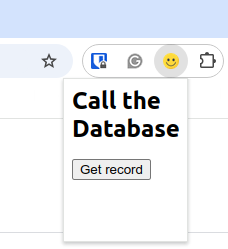
Figure 41: Extension pop-up with a button to trigger the retrieval of records from the database.
In Figure 42 we can see the name John that was returned from the database.
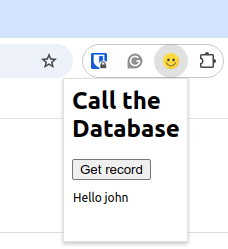
Figure 42: Extension showing the name retrieved from the database.
In Figure 43, we can see that each time the button on the pop-up window is clicked, a HTTP call is made to the API server, which in turn fetches the records from the database and prints them to the console. In this output, we can also see the amount of time the call took to load on the server, and the status code returned. Typically, on the first request, in the console, you will see a 200 status code indicating everything is OK. In subsequent calls, if nothing has changed in the data on the server, a 304 status code is used to indicate no changes made in the request.
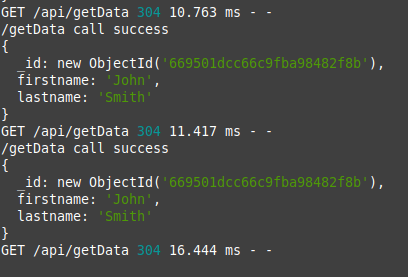
Figure 43: Output showing API printing the record to our console, indicating the HTTP request was successful.
4.9 Summary
In this chapter, to extend the functionality of an extension, the process of setting up a complete full-stack was explored. A MongoDB database was used for storing data in the form of JSON records, and a simple Express.js API was then created to interact with the database. Finally, an extension was created that allowed us to trigger the data retrieval process by clicking a simple button on the extension's user interface.
Chapter 5, next, explore a variety of different approaches for saving and retrieving data from a Chrome extension.